Ever wondered where Steam games are actually stored on your PC? This comprehensive guide dives deep into finding your Steam game location, a crucial skill for any modern PC gamer. Whether you are looking to mod your favorite titles, back up massive game files, troubleshoot performance issues, or simply free up valuable disk space on a crowded drive, understanding your Steam library structure is essential. We will explore various methods for locating installed games, managing multiple library folders, and optimizing your gaming setup. With US gamers averaging over 10 hours a week playing games and 87% regularly engaging, efficient game management is more important than ever to balance gaming with life. From new releases to timeless classics, knowing where your digital adventures reside empowers you to take full control of your gaming experience and keep things running smoothly. This guide provides clear, actionable steps for all levels of PC users to help them find where is steam game located.
Where does Steam install games by default on a Windows PC?
By default, Steam installs games to C:\Program Files (x86)\Steam\steamapps\common. This is the standard location unless you have manually configured Steam to use different library folders on other drives or partitions.
How can I quickly open a game's installation folder directly from Steam?
To quickly open a game's installation folder, go to your Steam Library, right-click the game, select 'Properties', then navigate to the 'Local Files' tab, and click the 'Browse...' button. This will instantly open File Explorer to the game's root directory.
What are the common reasons gamers need to access their Steam game files?
Gamers frequently need to access their Steam game files for installing mods, creating manual backups of large titles, troubleshooting game errors or crashes, deleting corrupted configuration files, or moving games between different storage drives to optimize performance or free up space.
Is it possible to recover deleted Steam game files?
If you uninstalled a game through Steam, you would typically need to reinstall it. However, if files were accidentally deleted from the game folder without an uninstall, using Steam's 'Verify integrity of game files' feature (found in Properties > Local Files) can often redownload and restore the missing components.
How can I check how much space each Steam game takes up?
You can check game sizes directly within Steam. Go to Steam > Settings > Downloads > Steam Library Folders. Here, you will see a list of your library folders and their contents, including the size of each installed game, allowing you to manage your storage effectively.
What is the best practice for backing up Steam games?
The best practice for backing up Steam games involves using Steam's 'Move Install Folder' feature to copy games to an external drive or manually copying the entire game folder from your 'steamapps\common' directory. Ensure you back up save files separately, as they are often stored in Documents or AppData folders.
Does Steam Cloud Save affect game file location?
Steam Cloud Save primarily handles your game save data, achievements, and sometimes configuration settings, syncing them to Steam's servers. It does not affect the physical installation location of the game files themselves on your local drive. Cloud saves ensure your progress is maintained regardless of where the game is installed or which PC you play on.
Can I move Steam games between different computers easily?
While you can manually copy game folders between computers, it is often more reliable to use Steam's built-in backup and restore function (Steam > Backup and Restore Games) or simply download them fresh from your Steam library. Ensure both PCs are logged into the same Steam account. Manual copying can require verifying file integrity afterward.
Ah, the age-old question that every PC gamer eventually faces: Where is Steam game located? It might sound simple, but knowing the exact file path for your favorite digital adventures is more crucial than you think. For the average US gamer, around 36 years old, who balances a demanding job, family life, and a passion for gaming, time is precious. You want to jump into that new cozy game with friends, optimize performance for your competitive session, or simply relax with a single-player epic without wrestling with tech issues. But what happens when you want to install a mod, manually back up a huge game before a system wipe, or move a title to a faster SSD to cut down on load times?
Understanding where your Steam games live on your hard drive isn't just for tech gurus anymore; it's a fundamental skill for maintaining a smooth, enjoyable, and efficient gaming experience. With 87% of US gamers regularly diving into virtual worlds, often for 10+ hours a week, and social gaming trends continuing to dominate (hello, Discord!), efficiency is key. This guide is your trusted friend, here to demystify the Steam file system, helping you manage your games, troubleshoot problems, and unlock new possibilities like modding, all while respecting your valuable time. Let us dive in and conquer the mystery of where is Steam game located.
What is the Default Steam Game Location on PC?
For most Windows users, Steam games are installed in a very predictable place. By default, Steam creates a primary library folder within your Program Files. This is usually located at: C:\Program Files (x86)\Steam\steamapps\common. Inside the 'common' folder, you will find individual subfolders for each game you have installed. This standardized path ensures that Steam can easily manage updates, verify files, and launch your games without a hitch. However, this default location is not set in stone, and many gamers opt for alternative directories.
How Can I Find a Specific Game's Location Through Steam?
The easiest and most reliable way to find where a specific Steam game is located is directly through the Steam client itself. This method bypasses any guesswork and points you straight to the game's installation folder. It is a go-to trick for quick access, whether you are looking to install a mod or just peek at the game files.
- Open your Steam client.
- Navigate to your Library.
- Right-click on the game you want to locate.
- Select Properties from the context menu.
- In the Properties window, click on the Local Files tab.
- Click the button labeled Browse....
This will immediately open a File Explorer window directly to the game's root installation folder, showing you exactly where is Steam game located on your system.
Can I Have Steam Games on Multiple Drives? How to Manage Them?
Absolutely! With game sizes constantly ballooning (some new titles easily hit 100GB or more!), having multiple Steam Library folders across different drives is not just common; it is practically essential for many gamers. Perhaps you have a fast but smaller SSD for your frequently played titles and a larger, more affordable HDD for your entire game collection. Steam makes managing multiple locations relatively straightforward:
- Adding New Library Folders: Go to Steam > Settings > Downloads > Steam Library Folders. Here you can see all existing library folders and add new ones on different drives. Simply click the plus icon (+) and choose an empty folder on your desired drive.
- Moving Existing Games: To move an installed game to a different library folder, right-click the game in your Library, select Properties > Local Files > Move Install Folder.... Then choose the desired new library location from the dropdown menu. This is a lifesaver for optimizing performance or freeing up space on your primary drive without reinstalling.
Efficiently managing these folders is a smart move for busy gamers, allowing you to prioritize which games get the SSD speed boost.
Why Would I Need to Know Where My Steam Games Are Located?
Knowing where your Steam games are located offers a surprising number of benefits, especially for a gamer who values performance, customization, and peace of mind. Here are the top reasons:
- Modding Games: Many popular games, especially PC exclusives, have thriving modding communities. Installing mods often requires manually placing files into specific game folders. Without knowing where those folders are, modding is impossible.
- Creating Backups: Before a system reinstall or a major hardware upgrade, backing up your favorite massive titles can save you hours of redownloading. Knowing the file path lets you copy game folders to an external drive.
- Troubleshooting Issues: Sometimes a game simply will not launch or crashes repeatedly. Accessing the game's files can help you delete corrupted configuration files, check for conflicting third-party software, or even run executable files in compatibility mode.
- Freeing Up Disk Space: Large games eat up storage quickly. Identifying where games are located allows you to manually move less-played titles to a larger, slower drive or uninstall them completely to free up valuable space on your faster primary drive.
- Custom Configurations: Some games allow for advanced configurations via INI or XML files stored within their installation directory, giving you more control over performance or visual settings.
For US gamers balancing work and play, these practical applications mean less frustration and more actual gaming time.
How Do I Change the Installation Location for New Steam Games?
When you go to install a new game on Steam, the client will present you with a dropdown menu allowing you to choose the installation location. If you have set up multiple Steam Library folders (as described above), all of them will appear in this list. Simply select the desired drive and folder for your new game before clicking 'Next'.
If you want to change the default location so you do not have to select it every time:
- Go to Steam > Settings > Downloads > Steam Library Folders.
- In the list of library folders, right-click on the folder you want to make the default.
- Select Make Default.
Now, whenever you install a new game, this location will be pre-selected, saving you a click and ensuring your games go where you want them to go from the start.
What if My Steam Game Files are Missing or Corrupted?
It is a frustrating moment: you launch your favorite game, and it crashes, has visual glitches, or refuses to start. Often, this is due to missing or corrupted game files. Thankfully, Steam has a built-in tool to fix this directly, without needing to manually hunt down individual files.
- Open your Steam client and go to your Library.
- Right-click the problematic game and select Properties.
- Go to the Local Files tab.
- Click Verify integrity of game files....
Steam will then scan all the game files in its installed location, compare them to the official versions on its servers, and automatically download and replace any files that are missing or corrupted. This process can save you a full reinstallation and get you back into the action swiftly.
Are Steam Games Located Differently on Mac or Linux?
Yes, while the underlying principle of a library folder remains the same, the default paths for Steam games on Mac and Linux operating systems differ from Windows.
- On macOS: Steam games are typically found at: ~/Library/Application Support/Steam/steamapps/common. The 'Library' folder is often hidden by default, so you might need to reveal hidden files or use the 'Go to Folder' option in Finder (Shift+Command+G) to enter the path directly.
- On Linux (Steam Play/Proton): For Steam on Linux, especially when using Steam Play (Proton) to run Windows games, the path is generally: ~/.local/share/Steam/steamapps/common. Similar to Mac, the '.local' folder is hidden, requiring you to show hidden files in your file manager.
Understanding these OS-specific locations ensures cross-platform gamers can effectively manage their libraries regardless of their chosen operating system, though the 'Browse Local Files' method from the Steam client remains universally the easiest approach.
How to Create a New Steam Library Folder?
Creating a new Steam Library folder is a simple, yet powerful way to expand your game storage and organize your collection across different drives. This is especially useful for gamers who've upgraded with a new SSD or have a dedicated drive for games.
- From the Steam client, click on Steam in the top-left corner and select Settings.
- Navigate to the Downloads tab.
- Click on Steam Library Folders.
- In the new window, click the plus (+) icon.
- Choose the drive where you want to create the new library.
- Click New Folder, give it a descriptive name (e.g., 'SteamLibraryD'), and then click Select.
Steam will initialize the folder, and it will now be available as an option for new game installations or for moving existing games. This keeps your game files organized and accessible.
What Are the Benefits of Moving Steam Games to an SSD?
Moving your most-played Steam games to a Solid State Drive (SSD) from a traditional Hard Disk Drive (HDD) offers significant performance benefits that can dramatically improve your gaming experience. For busy gamers, this means more time playing and less time waiting.
- Faster Load Times: This is the primary benefit. Games installed on an SSD load levels, textures, and assets much quicker, drastically reducing waiting times between areas or at startup.
- Smoother Gameplay: While an SSD does not directly affect FPS, games that stream assets in the background (like open-world titles) can experience less stuttering or hitching as data is accessed faster.
- Quicker Installations and Updates: Installing new games and downloading updates often involves writing many small files. SSDs excel at this, making the process much faster.
- Improved Responsiveness: The overall system feels snappier when applications and large files are on an SSD, extending beyond just games to your entire PC experience.
Many US gamers prioritize an SSD for their primary gaming drive to get the best performance out of their favorite titles.
How Does Steam Handle Game Updates and Their Location?
Steam manages game updates seamlessly within the existing game installation folders. When an update is released, Steam typically downloads only the necessary changes, often in a compressed format, to a temporary location. Once downloaded, these changes are then integrated into the game's existing files within its 'steamapps\common' folder (or your designated library folder).
This process is highly optimized to minimize download sizes and update times. Steam does not usually create separate update folders; rather, it modifies the files already present. For gamers who enjoy staying current with the latest patches and content, knowing that Steam handles this efficiently in the background, within the established game location, is reassuring.
FAQ Section
Is it safe to move Steam game files manually?
While possible by copying and pasting, it is generally safer and recommended to use Steam's built-in 'Move Install Folder' function. Manual moves can sometimes break file paths or require extra steps to register the game with Steam, potentially leading to launch issues. Steam's tool handles all the necessary adjustments automatically.
How do I verify game file integrity through Steam?
To verify game file integrity, right-click the game in your Steam Library, go to Properties, then Local Files, and click 'Verify integrity of game files...'. Steam will check for and replace any corrupted or missing files, often resolving common game launch problems.
Can I play Steam games from an external hard drive?
Yes, you can install and play Steam games from an external hard drive. Just add the external drive as a new Steam Library folder via Steam Settings > Downloads > Steam Library Folders. Performance might vary depending on the drive's speed and connection (USB 3.0 or faster is recommended).
What is the 'steamapps' folder?
The 'steamapps' folder is a crucial component of your Steam installation. It contains all your installed game data. Inside 'steamapps', you will find the 'common' folder (where most game files reside), the 'downloading' folder (for active downloads), and 'appmanifest' files (which track game installations for Steam).
Does uninstalling a Steam game delete all its files?
Uninstalling a Steam game through the client usually removes most core game files. However, it might leave behind saved game data, configuration files, or mod files, especially those created outside of Steam's direct management. To completely remove all traces, you might need to manually check the game's folder after uninstalling.
What if Steam cannot find my installed games?
If Steam cannot find your games, go to Steam > Settings > Downloads > Steam Library Folders. Ensure all drives where you have games are listed. If not, add them. Steam will then scan these folders and usually re-detect your installed games, allowing you to play them again without re-downloading.
This is it! You have successfully navigated the digital labyrinth and uncovered the answer to where is Steam game located. Knowing these methods gives you significant control over your gaming library, whether it is for modding, troubleshooting, or simply optimizing your storage. For US gamers balancing life's demands with their passion for play, this knowledge is power. It frees you from technical headaches, letting you focus on the fun, the skill-building, and the social connections that make gaming so rewarding.
What is your biggest gaming challenge when it comes to managing your PC games? Comment below!
Discover Steam game installation folders Manage game files for modding backups troubleshooting Free up disk space with ease Understand Steam library structure Optimize game performance Find default and custom Steam game paths
35



January 2026 S Top Selling New Steam Games Revealed 08418405 04a2 47eb B48b 1500x843 . Steam Sales 2026 Calendar Full Dates Best CD Key Deals AllKeyShop Com All Steam Events 2026. Steam April 2026 Client Update Adds Remote Downloads Management Steam Client April 2026 1024x576 . The Most Played Games On Steam For 2026 So Far Cheat Code Central Most Played Games Steam 2026 2048x1167 . Steam Next Fest February 2026 Edition Jumping Into 2026 MixCollage 23 Feb 2026 08 57 AM 2571


:quality(30):format(webp):focal(0.5x0.5:0.5x0.5)/jogja/foto/bank/originals/20260423-Steam-Weekend-Deal-April-2026.jpg)


5 Game Steam Yang Patut Kamu Mainkan Di Bulan Januari 2026 . Steam Next Fest 2026 And Beyond All The Dates Details And Everything. Midweek Deal Steam April 2026 Hadir Dengan Berbagai Game Mabar Menarik 20260423 Steam Weekend Deal April 2026 . Steam 2026 Valve Steam Sales Festivals Calendar 2026 Banner . 2026 S First Steam Top Sellers Revealed Week 1 2026 Steam Top Sellers Revealed Week 1 1536x864




All 2026 Steam Fest Dates You Should Watch Out For Gamer Org All 2026 Steam Fest Dates You Should Watch Out For 3 . Steam Next Fest February 2026 The 22 Best Game Demos The Best Steam Next Fest Demos 2026 The Punished Backlog 1024x553 . Kalender Lengkap Event Steam 2026 Diskon Besar Dan Festival Game Favorit Steam Events Q82 W2560 H 27565.webp. Steam Sales 2026 Here S The Schedule For The First Half Of The Year 1824cr953 . Kalender Lengkap Event Steam 2026 Diskon Besar Dan Festival Game Favorit Steam Events 2 Q82 W2560 H 74ce0.webp



Jadwal Lengkap Steam Sale 2026 Catat Tanggal Diskon Game Favoritmu Game Di Steam . Nuova Steam Machine 2026 Giochi Compatibili E Data Di Nuova Steam Machine 2026.webp. My Current Steam Wishlist 2025 2026 New Games YouTube . Steam Next Fest February 2026 The 22 Best Game Demos The Best Steam Next Fest Demos 2026 The Punished Backlog Order 2 300x162 . Best Steam Horror Games To Play 2026 Edition LRDev Games 1.Best RPG Games On Steam Complete Guide.webp




Steam Sale 2026 Key Dates You Need To Know LevelUpTalk Steam Sale Schedule 2026 08 27 2025 7c35051e 2c22 4093 96f1. Valve Announces Steam Hardware Lineup Coming In 2026 Here S Steam Hardware Splash . Steam Sales 2026 Calendar Full Dates Best CD Key Deals AllKeyShop Com All Steam Events 2026 1.webp. Best Free Games To Claim Right Now 2026 Steam PlayStation Xbox More May 2026 Free Games Feature Image . The Top 2026 Games By Steam Wishlists By Rhys Elliott Fc2aa87f 2277 4294 9e7b 1920x1080



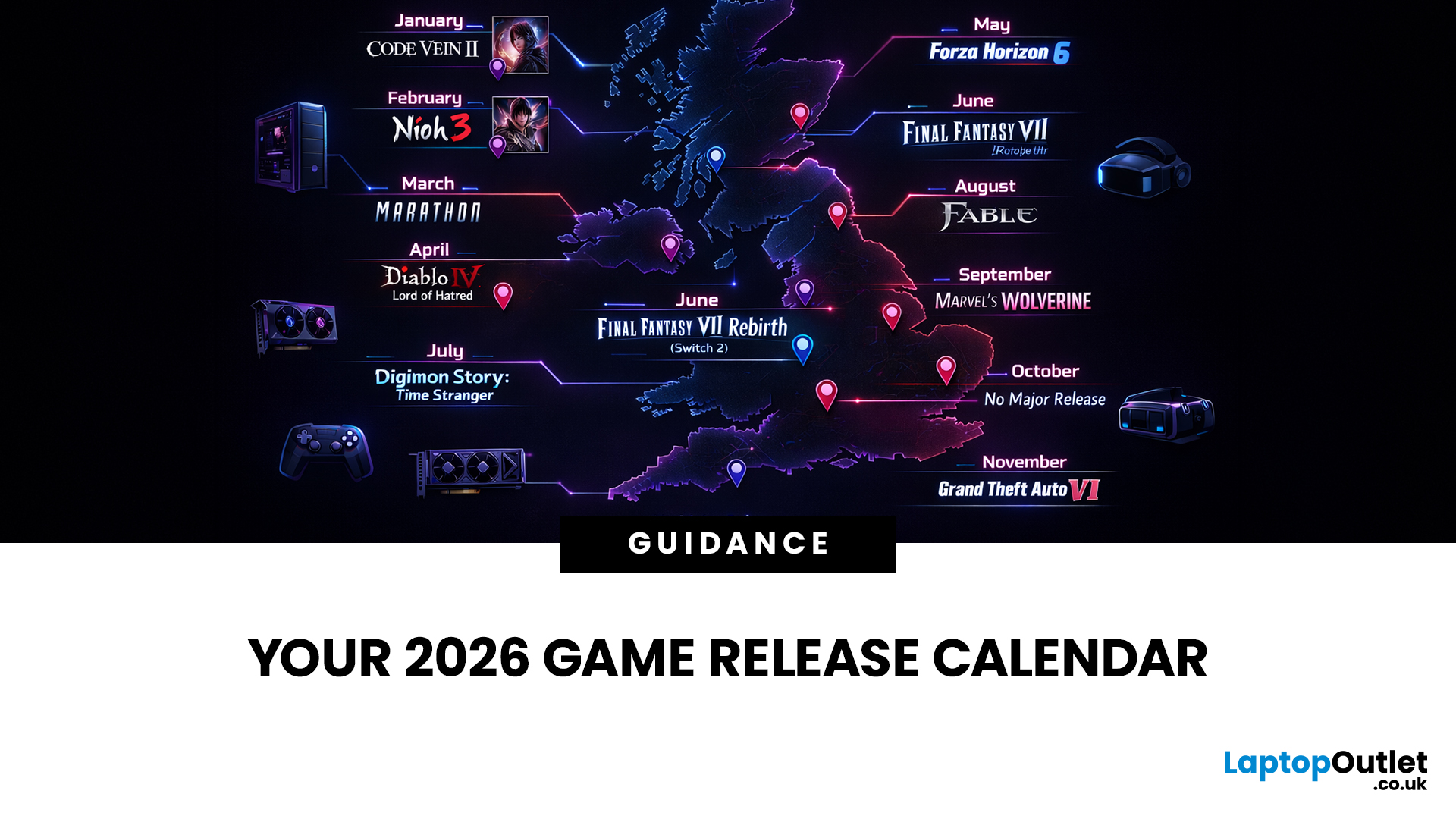

10 Much Awaited Games Set To Launch In 2026 Games To Launch 2026 1536x967 . Top 10 Most Anticipated Games Of 2026 What To Watch Out For TVN GAMES IN 2026 . 2026 Upcoming Games And Game Release Dates Guide 2026 Upcoming Games Release Dates . 2026 Game Releases Full Upcoming Games Calendar Release Dates PS5 Game Releases Full Calendar Release Dates Main . TOP 21 NEW Upcoming Games Of 2026 YouTube



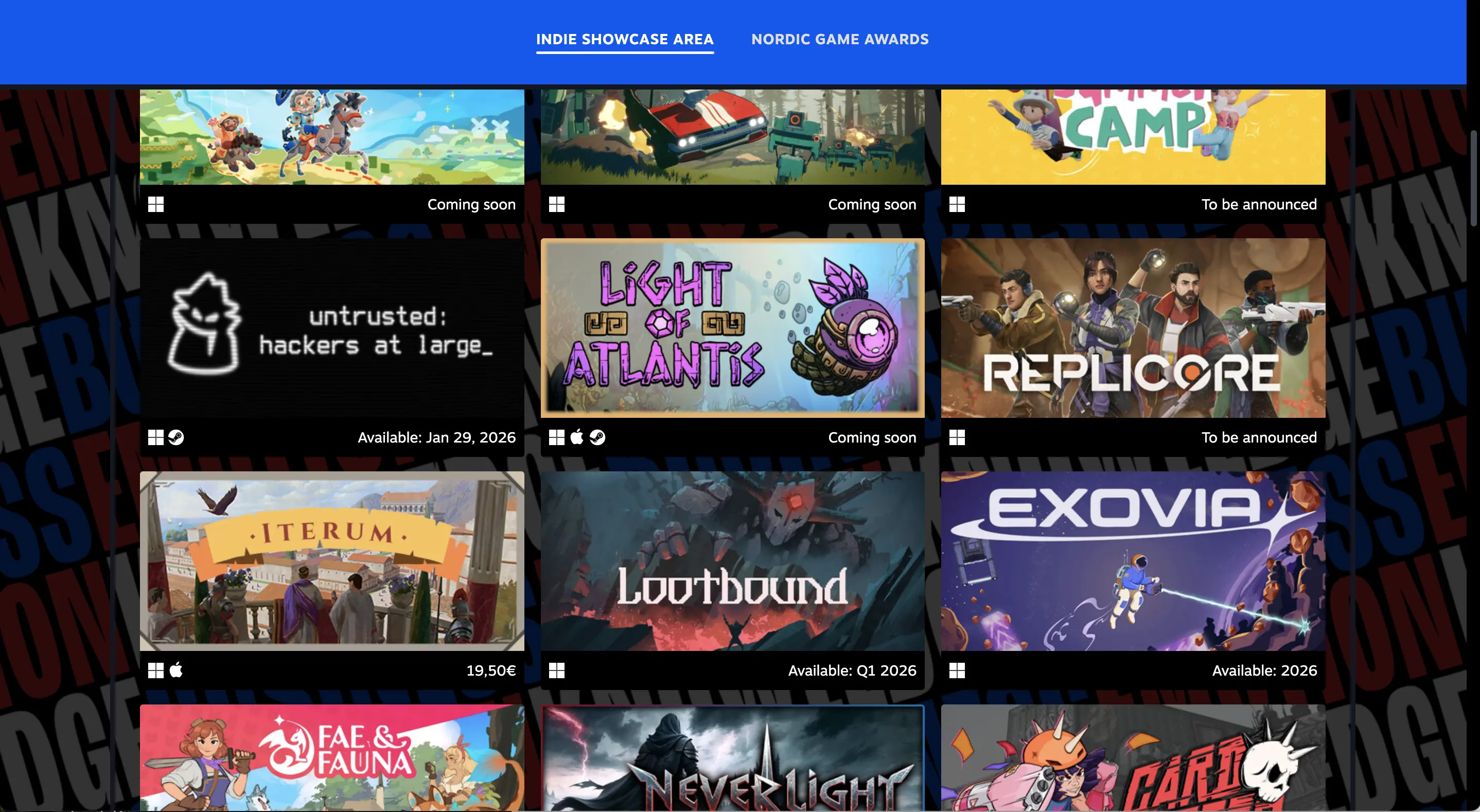
:strip_icc():watermark(kly-media-production/assets/images/watermarks/liputan6/watermark-color-landscape-new.png,1180,20,0)/kly-media-production/medias/5535685/original/040139800_1774087096-Steam_Spring_Sale_2026_01.jpeg)
New Steam Features For 2026 Steam Features 2026 What S New Banner.webp. Steam Inonde 2026 De Promotions La Fin Des Vraies Soldes Steam Sale Dates . When Is The Next Steam Sale . Countdown And History . SteamDB Google Chrome . Steam Sales Dates For The Second Half Of 2026 Announced Steam Sales Dates Second Half Of Year 2026 VGNW . Indies At NG26 Get Noticed On Steam Nordic Game 2026 NG25 Steam. Steam Spring Sale 2026 Dimulai Banyak Game PC Dan DLC Dipangkas Harga 040139800 1774087096 Steam Spring Sale 2026 01